
Two-Factor Authentication via Mobile App
Two-step verification enhances the security of your customer account. In addition to your login and password, a one-time code generated by an authentication app installed on your phone is required during login.
First, install the Google Authenticator app on your phone. The app is available for both Android devices and iPhone.
Installing Google Authenticator
Depending on the phone you use, download the app from the appropriate store:
 |  |
- Open Google Play on your phone if you are using an Android device, or the App Store if you are using an iPhone.
- Search for the Google Authenticator app. You can also use the corresponding link provided above.
- Make sure the selected app is published by Google LLC.
- Tap the Install button in Google Play or the download button in the App Store.
- Wait for the installation to finish, then open the Google Authenticator app.
- During the first launch, follow the instructions displayed by the app. If the app requests access to your camera, grant permission, as it will be required to scan the QR code.
Setting Up Two-Step Verification in the Store
After selecting verification via a mobile app, a QR code and input fields for entering the one-time code will appear on the screen.
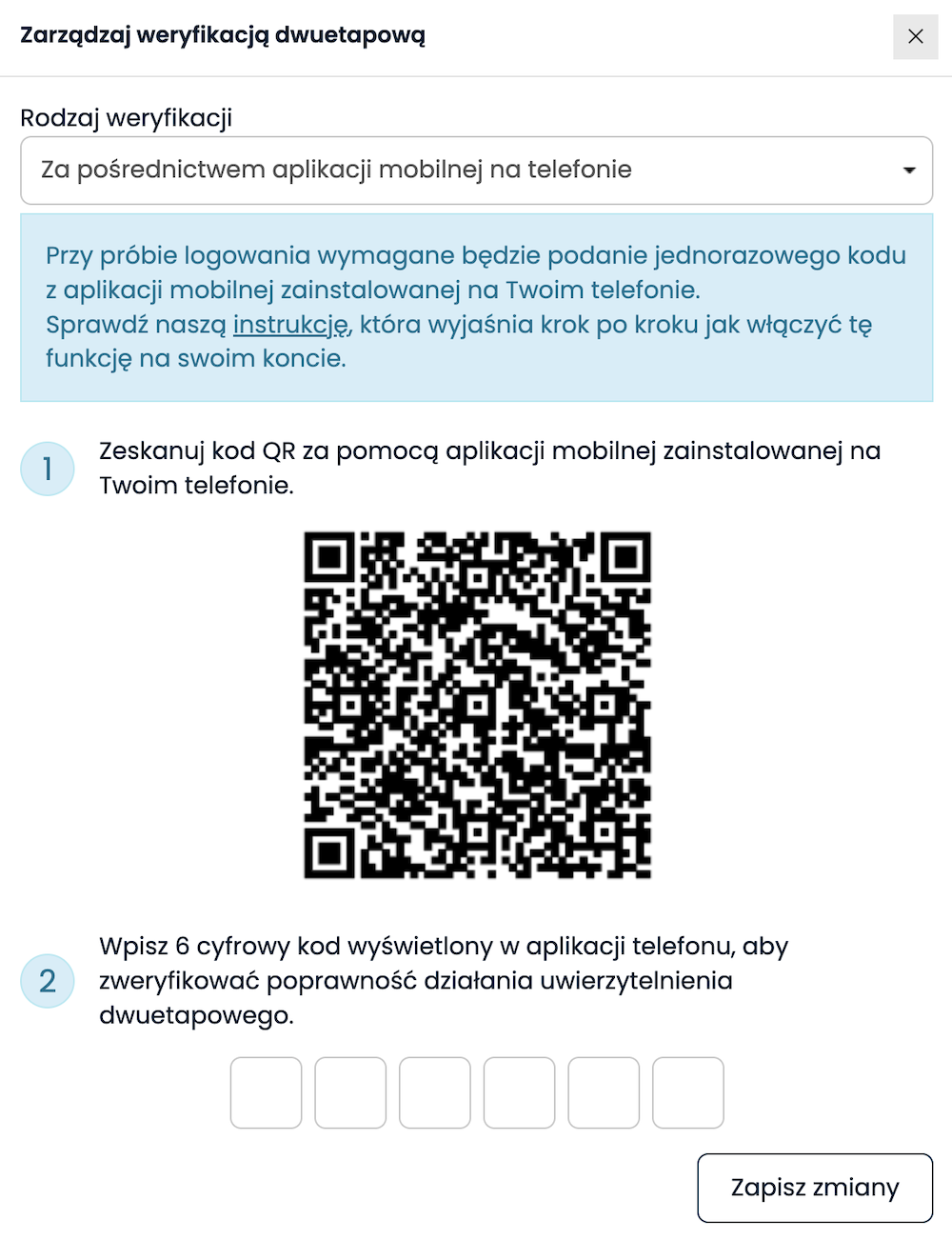
- Open the Google Authenticator app on your phone.
- In the app, select the option to add a new code or account, then choose the option to scan a QR code.
- The names and positions of buttons may vary slightly depending on the operating system (Android, iOS) and the installed version of Google Authenticator.
- Scan the QR code displayed on the store page using your phone.
- Once scanned, the store account will be added to the Google Authenticator app. The app will begin displaying a 6-digit code required for verification
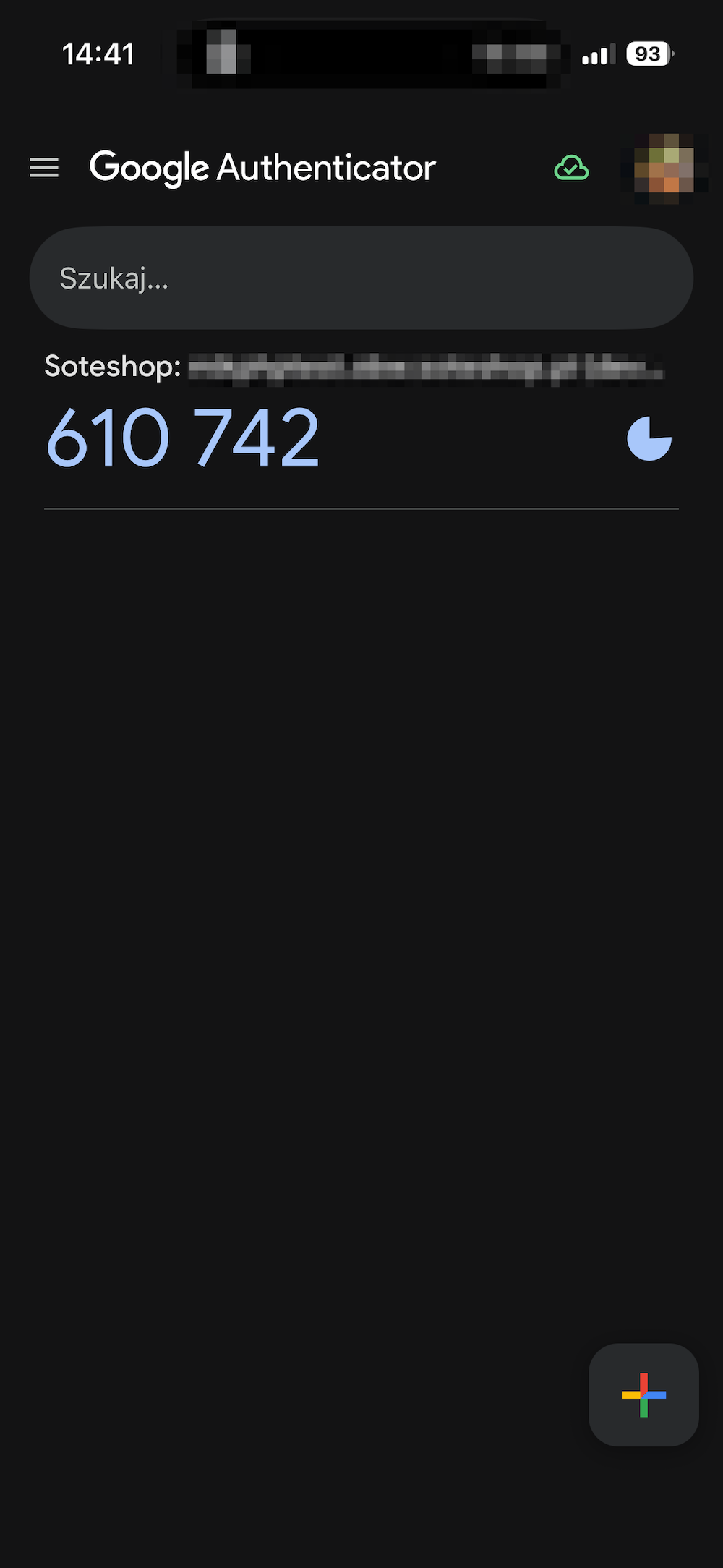
- Enter the 6-digit code generated in the Google Authenticator app into the fields shown on the store page.
- Click the Save changes button.
- Upon successful verification, backup codes will be displayed. Save them and store them in a secure place.
Important: We recommend saving the backup codes in a safe place. These codes allow access to your account if you lose access to your mobile device or the authenticator app.
Once you save the changes, two-step verification via the mobile app will be active. Next time the store requests additional verification during login, open the Google Authenticator app and enter the currently displayed 6-digit code
 Polish
 German
 Russian